
F-12-913 PointCare Visit Assignment Responses and Definitions
🎯 PURPOSE
Outlines the options a clinician can respond to a visit assignment received in PointCare following a sync. Clinicians must select the appropriate option to allow the back office to correctly configure the schedule. Clinicians cannot accept visits in the future. Only visits scheduled for the current day can be accepted. Clinicians must sync at the beginning of each day and frequently throughout the day to view schedule updates and changes.
🔄 PROCESS
Visit Assignment Responses
Pending visits for the current day: Pending visits can only be Accepted, Rescheduled or Declined.
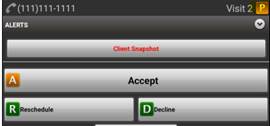
- ACCEPT: Select for visits that will be completed or addressed that day. Once a visit is accepted, the clinician will then have access to “reassign” or “miss” the visit.
- RESCHEDULE: Select to move the visit to a different day, for the same clinician during the assigned week.
- Rapid Reschedule: Subsequent visits notes are set up to allow rapid reschedule for qualified clinicians. The clinician can change the date and then sync twice back to back to update the visit on the device.
- DECLINE: Only utilize if you are unable to see the client assigned to you.
Accepted visits for the current date: Once the visit has been accepted by the clinician, there are still options available if schedule changes are needed.
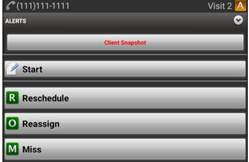
- START: Select immediately upon entering client’s home to start visit clock.
- RESCHEDULE: Select to move the visit to a different day, for the sameclinician during the assigned week.
- REASSIGN: Select to send the visit back to the office to be reassigned to a different clinician (same day or different day), or to request change to scheduled Service Code.
- Must communicate with Clinical Supervisor/Office Clinician to determine what changes are being requested.
- MISS: Only select when the visit is unable to be rescheduled or reassigned to another clinician within the same week.
- Visits marked as MISSED will NOT be rescheduled by the staffing manager.
- Clinicians should first attempt to reschedule or reassign visit for later in the week.
- Reschedule visit to later in the week in an attempt to schedule with the client.
- Should not be selected for Attempted Visit unless visit is unable to be rescheduled.
- Clinician must also complete NVA for attempted visit.
- Refer to PointCare- Missed Visits process for additional direction.
Visits for future dates: The rolling calendar (schedule in PointCare) currently shows 7 days. Clinicians are unable to “accept” visits for future dates.
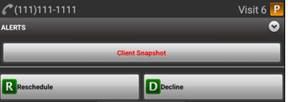
- RESCHEDULE: Select to move the visit to a different day, for the same clinician during the assigned week.
- Includes moving a future scheduled visit back to today.
- DECLINE: Only select DECLINE for a future visit if it needs to be reassigned or addressed immediately. For example, it is 4pm and there is a visit assigned for 8am tomorrow that needs to be addressed before the end of the business day. See below for how to address future visits.
Common issues with future visits:
- Wrong Clinician: If a clinician identifies that they have visits scheduled to them for future dates that need to be reassigned to a different clinician, the clinician should communicate to the Staffing Manager/designee if the change is being made to another qualified clinician (ie. RN to RN or LPN to RN). Communication via phone call is recommended if the visit is within the next 24 hrs.
- If visit is outside of 24 hrs, clinician should enter a Scheduler Notification Note to request the changes be made to their schedule. The staffing manager will complete the schedule changes and the rolling calendar will be updated on the next sync. Refer to F-12-826 Scheduler Notification Note.
- Wrong Service Code: If clinician identifies that they have an incorrect Service Code assigned and they need the schedule updated, they should communicate to the Clinical Supervisor/Office Designee for further direction.
Visits for previous dates that have not been started: Any visits that have not been completed by midnight will be located in the OVERDUE VISITS section of the Rolling Calendar. If they have not been started, they will be designated as LATE.
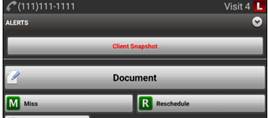
- DOCUMENT: Start/Complete documentation for a late visit.
- Clinician will be required to enter reason for late documentation and update visit date/time.
- MISS: Only select if visit was not performed as ordered and visit is unable to be rescheduled or reassigned to another clinician within the same week.
- Refer to PointCare- Missed Visits process for additional direction.
- RESCHEDULE: Select to move the visit to a different day, but the same clinician and the same week.
- Example: Visit originally scheduled for yesterday can be rescheduled to today for clinician to complete.
Accept All Visits: To save time, clinicians may choose to accept all visits assigned on a given day rather than accept each one individually.
-
To accept all visits for the day, tap and hold the Today header:

-
Select Accept All Visits from the menu.
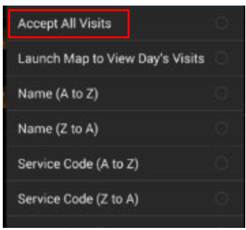
- Sync device.
Reschedule vs Rapid Reschedule: Current and future visits may be rescheduled if clinician knows in advance that they cannot be performed on the originally scheduled date. Clinicians may adjust the date of the visit, but cannot change the service code or clinician. Subsequent Visits (11,10) and other defined service codes may be rapid rescheduled from the device by qualified clinicians. When reschedule is selected on other service codes, the visit will go back to the office to be processed by the Staffing Manager.
-
Select Reschedule to move the service code to a different date within the current week.
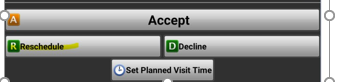
- Select Choose Date and select from drop down to move visit.
-
Select View Calendar to view other scheduled visits for the client:
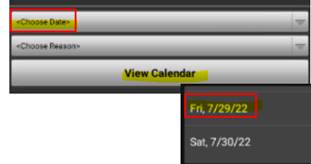
-
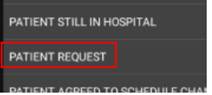
Select Choose Reason to enter the reason for the rescheduled visit.
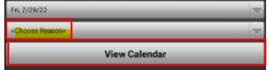
-
Example of Reason selection:
-
- Select SAVE to save the reschedule request.
- If clinician is trying to Rapid Reschedule the visit, they must sync twice immediately (back to back with no pause in between) and the visit will get updated back to the device. If the visit does not show back up on the device, clinician must follow up with the office if visit is being rescheduled to today. Once the office processes the visit, the visit will show on the rolling calendar on next sync.
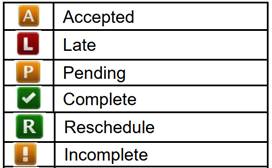
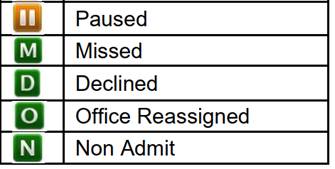
Visit Assignment/Rolling Calendar Icon Definitions:
📅 Effective: 01.17.2024 | 🛠️ Revised: 10.29.2026 | ✅ Approved: JS