
F-12-826 Scheduler Notification Note
🎯 PURPOSE
The Scheduler Notification Coordination Note should be entered by the field clinician to communicate non-urgent schedule changes. Examples include assignment of visits to specific clinician following an admission/evaluation or schedule adjustments for future dates.
🔄 PROCESS
The Scheduler Notification Coordination Note can be accessed multiple ways from PointCare. It can be accessed from the Medical Record and from within the visit itself.
- Create a Scheduler Notification note from the Medical Record:
-
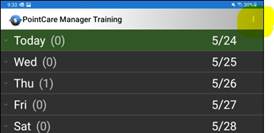
Access the client medical record:
-
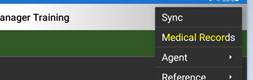
Select Medical Records:
-
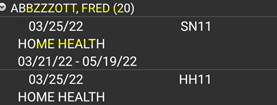
Select Client Name and Episode:
-
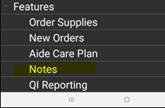
Scroll down to Features and select Notes:
-
Select Add:

-
Select Scheduler Notification and enter note:
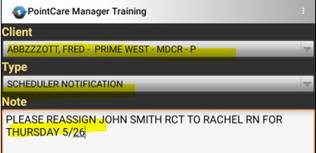
- Save note and Sync. Note will get sent back to the office.
-
- Create a Scheduler Notification Note from the Visit:
-
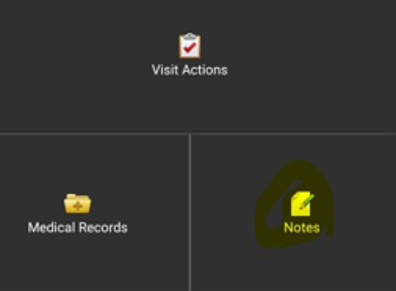
From the Visit Action Screen, select Notes:
-
Select Add:

-
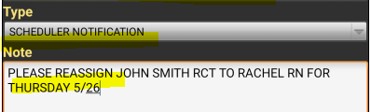
Select Scheduler Notification and enter note text:
-
Select the Menu button and Save:
- If added within the visit, the note will not get synced to the office until the visit is completed and synced.
-
📅 Effective: 11.06.2025 | 🛠️ Revised: 10.29.2026 | ✅ Approved: JS