
F-5-143 Set Up a Voicemail Greeting in Zoom Mobile App
👤ROLE
Field employees (those with access to Zoom Phone)
🎯 PURPOSE
This process provides the steps which field staff must follow to set up a standardized voicemail greeting in the Zoom mobile application.
🔄 PROCESS
- Open the Zoom application on your mobile device.
-
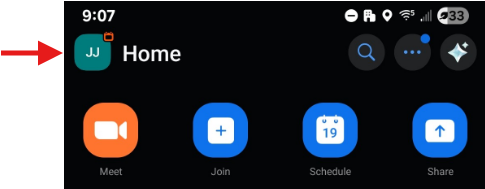
Click on your initials on the upper left.
-
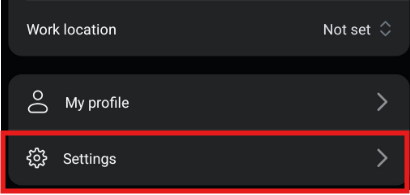
In the new page which loads, select Settings.
-
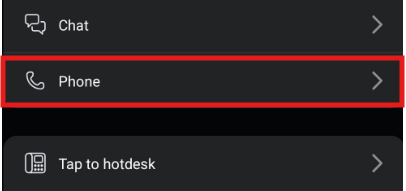
A settings page will load. Select Phone.
-
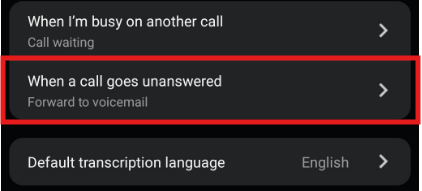
A new page will load. Scroll down to the setting When a call goes unanswered. Select this option.
-
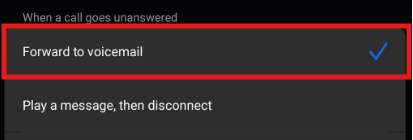
A new page will load. Under the section labeled When a call goes unanswered, ensure the option Forward to voicemail is selected.
- At the bottom of the page's options, ensure that the Menu options setting is Off.
- 🚧 This step is very impactful.
-
If this field incorrectly indicates that menu options are turned on, select this setting, and in the next screen toggle the option "Reach an operator" OFF, then select Save. This will result in the Menu options being turned off as in the screenshot below.
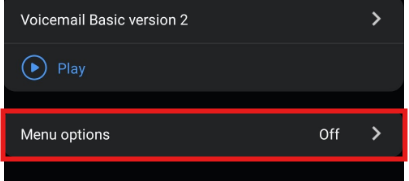
The Menu option field MUST be listed as OFF.
-
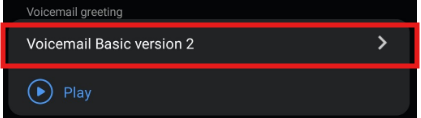
Next, locate the Voicemail greeting option. If you have previously had a voicemail greeting set up, your current voicemail option will be selected. For new employees, this field will state Default. Select this field.
-
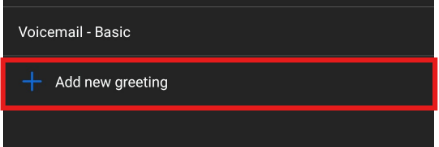
A list of any voicemails set up under your account will load. Below these options, select Add New Greeting.
-
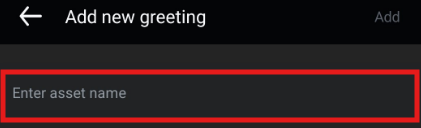
After selecting Add new greeting, a new page will load. The first field is Enter asset name. Enter a name for the voicemail greeting here.
-
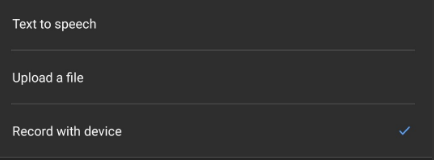
There are three voicemail greeting setup options from which you may choose. Select the option you would like to set up.
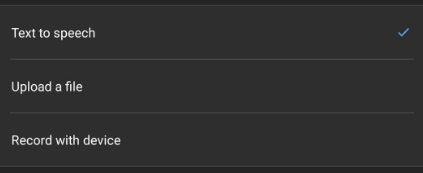
- Option A: Text to speech
- Option B: Upload a file (not commonly used)
- Option C: Record with device
- Select your preferred greeting option, as labeled in the blue hyperlink, in step 11 above. The hyperlink will route you to the steps specific to that option below, located in this process's appendix.
- Complete the steps specific to your preferred setup option.
- After completing these steps, the name of your newly-assigned voicemail name will appear as the selected Voicemail greeting.
APPENDIX A
Option A: Create Voicemail Greeting using Text-to-Speech
By setting up your voicemail greeting using the text-to-speech option, a generated voice will read the text which you enter into the voicemail greeting setup.
-
Select the Text to Speech option.
-
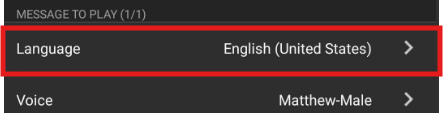
Under Language, select English (United States).
- The text used for the voicemail greeting is standardized for field staff. Follow the template laid out for your specific branch.
- ⚠️ Click the link for your home branch below to open that specific template in a new tab.
- Copy the greeting from the template and paste the full text into the text box.
-
Add your name and credentials where indicated.

-
Click the Preview button below the text box to hear how the message sounds.

- If the automated voice does not accurately pronounce your name, you may adjust the spelling of your name as needed so that the automated voice will pronounce it correctly. This may take some trial and error.
-
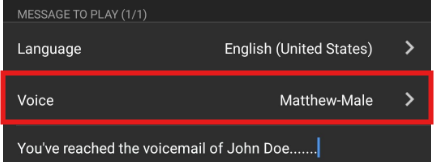
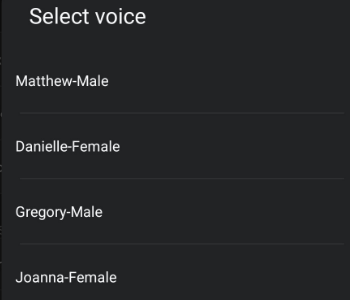
Under the Voice dropdown above the text box, there are different voice styles from which to choose. To preview the different voices, select a name from the dropdown and then click the Preview button to hear the automated voice read your message.
-
You may select a voice which you like, but do not select an option which uses a child's voice.
-
-
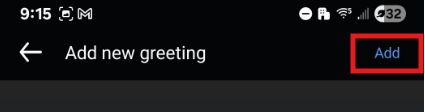
Once you're happy with the selections made, the text of the voicemail, and how the preview sounds, select Add in the upper right.
- You will return to the previous page, and the title of the voicemail you created will now show under the Voicemail greeting selection.
- This completes your voicemail setup. When callers reach your voicemail, they will then now hear that assigned message.
Option B: Upload a Pre-Recorded Voicemail Greeting
To use this option, you will need to upload a pre-recorded .mp3/.wav file.
This option is not commonly used. If you want to use this option due to barriers with other methods, reach out to your supervisor for direction. If you then proceed with using this option and are experiencing technology barriers, reach out to support@adarahomehealth.com if needed.
Option C: Record your voicemail greeting with your mobile device
By following these steps, you will record a voicemail greeting using your own voice.
-
Select the Record with device option.
-
Under Language, select English (United States).

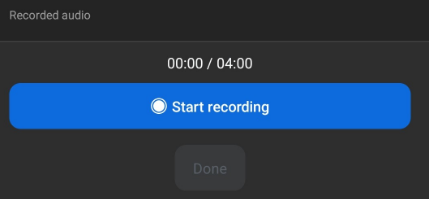
- To record your message, you will select Start recording and speak the voicemail greeting laid out in your branch template.
- ⚠️ Follow the template laid out for your specific branch. Click the link for your home branch below to open that specific template in a new tab.
-
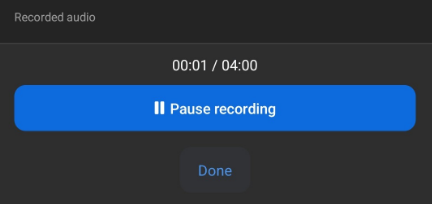
Click the Pause recording button to pause recording.
-
When you are done recording, select Done.

-
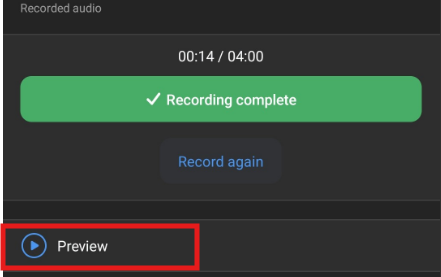
The button will update to Recording complete. Listen to your recording by selecting Preview.
-
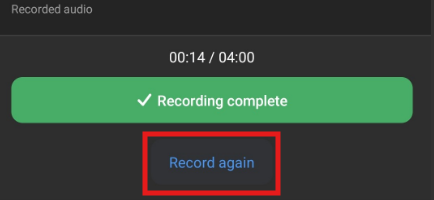
If you would like to re-record your greeting, click Record again (your previous recording will not save).
-
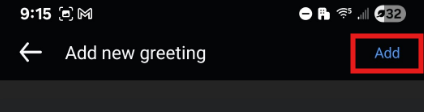
When you are satisfied with your recording, select Add in the upper right.
- You will return to the previous page, and the title of the voicemail you created will now show under the Voicemail greeting selection.
- This completes your voicemail setup. When callers reach your voicemail, they will now hear that assigned message.
APPENDIX B
Templates for the standardized voicemail greeting for field staff, sorted per branch location.
003 Buffalo Branch
Voicemail Greeting Template for Field Staff
You have reached the confidential voicemail of [First Name], [*Credentials] with Adara Home Health. If this is an emergency, please hang up and dial 911. If your need is urgent, please contact the Buffalo Office at 763-682-3005. If you have signed orders or other written documentation, we encourage you to fax it to our office at 763-682-3006. If you wish to leave a voicemail, including provider orders or other information necessary to coordinate care, please leave your name, call back number, and the reason for your call. Thank you!
004 Rochester Branch
Voicemail Greeting Template for Field Staff
007 Mankato Branch
Voicemail Greeting Template for Field Staff
You have reached the confidential voicemail of [First Name], [*Credentials] with Adara Home Health. If this is an emergency, please hang up and dial 911. If your need is urgent, please contact the Mankato Office at 507-519-4016. If you have signed orders or other written documentation, we encourage you to fax it to our office at 507-601-6988. If you wish to leave a voicemail, including provider orders or other information necessary to coordinate care, please leave your name, call back number, and the reason for your call. Thank you!
008 Hutchinson Branch
Voicemail Greeting Template for Field Staff
You have reached the confidential voicemail of [First Name], [*Credentials] with Adara Home Health. If this is an emergency, please hang up and dial 911. If your need is urgent, please contact the Hutchinson Office at 320-753-0936. If you have signed orders or other written documentation, we encourage you to fax it to our office at 320-332-0106. If you wish to leave a voicemail, including provider orders or other information necessary to coordinate care, please leave your name, call back number, and the reason for your call. Thank you!
009 Saint Cloud Branch
Voicemail Greeting Template for Field Staff
You have reached the confidential voicemail of [First Name], [*Credentials] with Adara Home Health. If this is an emergency, please hang up and dial 911. If your need is urgent, please contact the Saint Cloud Office at 320-255-1882. If you have signed orders or other written documentation, we encourage you to fax it to our office at 320-255-5137. If you wish to leave a voicemail, including provider orders or other information necessary to coordinate care, please leave your name, call back number, and the reason for your call. Thank you!
010 Blaine Branch
Voicemail Greeting Template for Field Staff
You have reached the confidential voicemail of [First Name], [*Credentials] with Adara Home Health. If this is an emergency, please hang up and dial 911. If your need is urgent, please contact the Blaine Office at 763-792-9471. If you have signed orders or other written documentation, we encourage you to fax it to our office at 763-792-9472. If you wish to leave a voicemail, including provider orders or other information necessary to coordinate care, please leave your name, call back number, and the reason for your call. Thank you!
011 Mendota Heights Branch
Voicemail Greeting Template for Field Staff
You have reached the confidential voicemail of [First Name], [*Credentials] with Adara Home Health. If this is an emergency, please hang up and dial 911. If your need is urgent, please contact the Mendota Heights Office at 651-867-6800. If you have signed orders or other written documentation, we encourage you to fax it to our office at 651-395-7577. If you wish to leave a voicemail, including provider orders or other information necessary to coordinate care, please leave your name, call back number, and the reason for your call. Thank you!
📅 Effective: 09.08.2026 | 🛠️ Revised: N/A | ✅ Approved: JFJ